LumaFusion: Pro Video Editing
- 4.1
- Rating
- 50.00K
- Installs
- $29.99
- Price

 Analysis by App-foxy
Video editing on a mobile device can be either surprisingly capable or unnecessarily frustrating, depending on how an app handles the small screen, touch controls, and the amount of detail packed into its interface. After spending time with LumaFusion, I see it as a serious editing workspace rather than a quick filter tool. It is made by LumaTouch, belongs to the video players and editors category, and aims at people who want to assemble a polished project without moving immediately to a desktop editor.
My overall impression is positive, but it comes with an important qualification: this is not the easiest editor for someone who only wants to trim a clip and add a song. Its strength is control. Its weakness is that control takes space, concentration, and practice. That trade-off becomes especially important when considering different abilities, lighting conditions, hand comfort, and the kind of device on which you plan to edit.
How the workspace feels to read and navigate
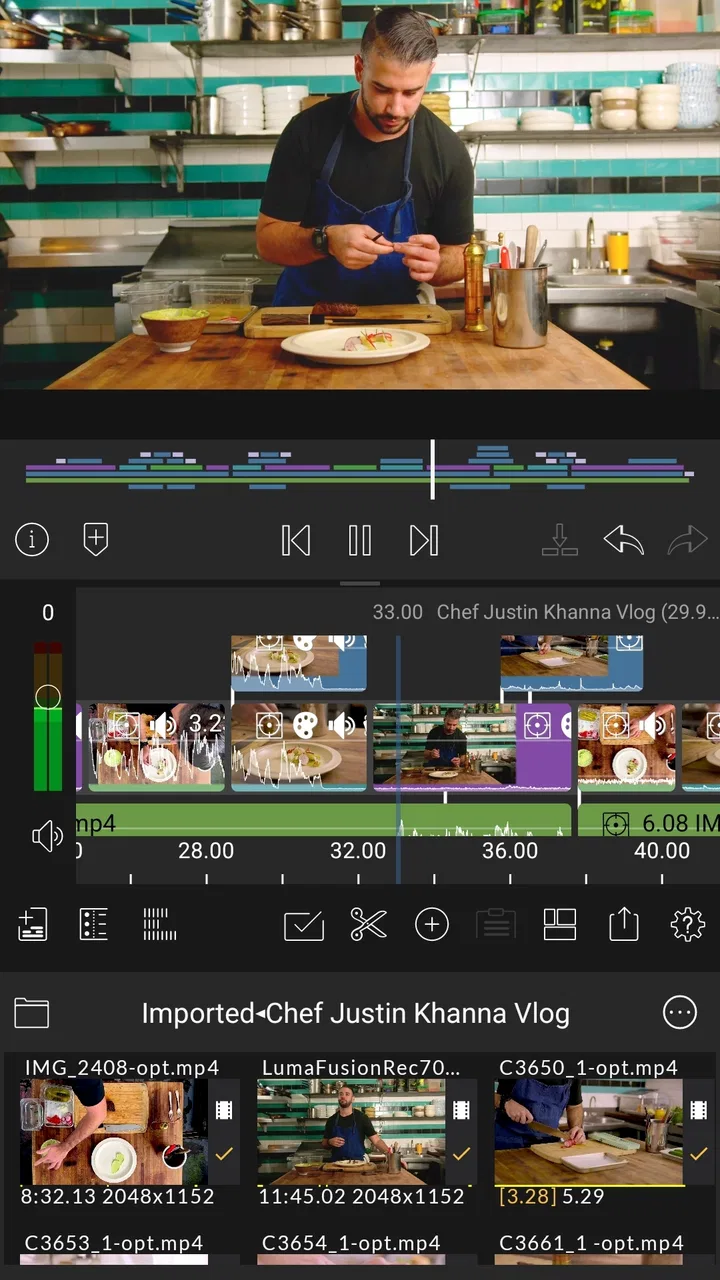
The interface is built around a conventional editing layout, with media, preview, and timeline areas working together. I found that familiar structure helpful because it makes the app feel closer to a desktop editor than to a social-media creator. Once I understood where clips, tools, and project elements belonged, I could move through an edit with a clear sense of cause and effect.
You May Also Like

 Blood Strike: 2.5 Anniversary
Blood Strike’s Loadouts Turn Every Drop Into a Tactical Gamble
A close look at Blood Strike’s custom loadouts: how fast access to signature weapons reshapes its battle royale rhythm, rewards preparation, and narrows the gap between fights.

 Pandora - Music & Podcasts
Pandora’s Music Is Easy to Start, but Harder to Recover
Pandora’s strength is its low-effort path from a seed to a station. Its weak spot is how much confidence it asks you to place in connection, setup, and quiet recovery.

 8 Ball Pool
 Is Built on Rivalries, Rematches, and Routine
A close look at the rivalries, rematches, shared routines, and unanswered safety questions that turn a quick pool match into a persistent mobile community.

 Samsung Music
’s Quiet Strength Is Playing What You Already Own
Its reach comes less from spectacle than from dependable access to a personal library. That simplicity is both the app’s strongest retention engine and its ceiling.

 AccuWeather: Weather Radar
AccuWeather Review: A Quick, Clear Forecast for Everyday Decisions
For everyday plans, the best forecast is the one you can understand quickly. AccuWeather makes rain timing, radar, and local conditions easy to act on, with a few trade-offs.

 Hill Climb Racing
Why Hill Climb Racing Still Turns Crashes Into One More Run
A tiny car, a bumpy hill and one more upgrade: Hill Climb Racing keeps resurfacing because its simple chaos makes every near-miss feel personal.
More From Our News Desk
View All News


That clarity does not arrive instantly. The screen contains many controls, and the timeline can become visually busy when a project includes several layers of video, titles, music, and effects. Someone new to non-linear editing may initially wonder which control changes the clip, which changes the project, and which changes the selected item. I recommend beginning with a short project instead of importing an entire camera roll. A small practice sequence makes the layout much easier to understand.
For readability, the most useful habit is to keep the timeline organized from the start. I name or group material mentally by purpose—interview, cutaway, music, and titles—rather than dropping everything into the project and sorting it later. This is not merely tidy editing. It reduces the number of visual decisions I have to make when returning to a project after a break.
The timeline is also where the app’s precision becomes valuable. I can make decisions at a much finer level than I would in a basic phone editor, which helps when a spoken phrase needs a clean cut or when a music change should land at a particular moment. The trade-off is that precision depends on selecting the correct clip and using the controls carefully. On a smaller display, it is easy to tap near the wrong item, especially when several layers overlap.
I would not describe the navigation as inaccessible by default, but I would describe it as demanding. It rewards users who are comfortable learning an editing vocabulary: tracks, trimming, transitions, keyframes, audio levels, and clip properties. If those ideas are unfamiliar, the first session may feel more like learning a tool than making a finished video.
One practical approach helped me considerably: I separate the creative passes. First I arrange the story, then I clean the cuts, then I work on sound, and only after that do I polish titles and visual adjustments. Trying to perform all those tasks at once makes the interface feel crowded. Working in passes turns a dense workspace into a sequence of manageable tasks.
Why the editing layout helps experienced users
For an experienced editor, the timeline-based design is a major advantage over simplified alternatives. Basic editors often hide decisions behind automatic templates or a small number of buttons. That can be convenient, but it also makes unusual edits difficult. Here, I have more direct control over how the project is built, which is useful for documentaries, instructional videos, travel diaries, interviews, and short films.
The same design can be less comfortable for people who depend on very large interface elements or who find dense visual layouts tiring. I would test the app on the device you actually intend to use, not assume that a comfortable tablet experience will feel equally manageable on a phone. Screen size changes the amount of timeline visible at once, the ease of selecting a small control, and the amount of zooming or repositioning required.
Another useful insight is that the app’s flexibility can make mistakes less obvious. A clip may still look acceptable while an audio layer is misaligned or a title is attached to the wrong part of the sequence. I make a habit of reviewing the project from beginning to end after every major structural change. That review is especially important for users who rely on a slower, deliberate workflow, because it catches errors before the final export becomes the moment of discovery.
Touch control, sensory comfort, and different ways of working
Touch editing is both the appeal and the central challenge. Direct manipulation feels natural when I am trimming a clip or moving an element, and it makes the process more immediate than using a mouse for every small adjustment. At the same time, touchscreens provide limited physical feedback. I cannot always tell from my finger alone whether I selected the intended clip, moved it slightly, or changed a nearby setting.
Users with limited fine-motor control may find small timeline targets demanding. The experience can improve with a larger screen, a stable surface, and a slower editing rhythm. I would avoid editing while holding the device in one hand if accuracy matters. Supporting the device with both hands, or placing it on a stand, reduces accidental movement and makes repeated selections less tiring.
This is also an app where an external pointing device may change the experience, depending on the operating system and hardware combination. I would treat that as a personal setup choice rather than an assumed solution. The important point is that the application is designed around direct editing, so people who find touch precision difficult should try the workflow before committing to a major project.
For users sensitive to visual clutter, the best strategy is to reduce the number of simultaneous decisions. I keep only the material needed for the current sequence in view and avoid opening several adjustment areas while trying to judge a cut. A clean project structure does not remove the interface’s density, but it makes that density easier to manage.
Audio work deserves special attention. A video can look correct while still being uncomfortable to watch because speech is too quiet, music is too prominent, or a cut produces an abrupt change in volume. I listen through more than one setup when possible, including the device’s ordinary speakers and headphones. That is not just a quality-control step; it helps users who depend more heavily on audio understand whether the final result will remain clear outside the editing environment.
Likewise, visual effects should support meaning rather than compensate for unclear structure. Strong transitions, busy titles, and aggressive adjustments may look impressive in the preview but can make a video harder to follow. I prefer to use visual changes to signal a new subject, location, or section. This makes the finished piece easier to understand for viewers who may be watching in poor lighting, on a small screen, or with limited attention.
One of the more valuable workflows is to create a text-supported version of important spoken content when the project calls for it. I do not add text merely as decoration. For interviews, lessons, demonstrations, or announcements, readable titles and carefully timed captions can give viewers another way into the message. The app gives me the editing environment to place such material, but the responsibility for accuracy, timing, contrast, and legibility remains with me.
Editing when attention, energy, or time is limited
Long editing sessions can be mentally tiring, even when the project itself is enjoyable. I find it more sustainable to divide work into short goals: select usable clips, build the rough order, refine sound, and then polish. This approach is helpful for anyone who experiences fatigue, concentration limits, or discomfort from sustained screen use.
The project-based workflow also suits real situations. Imagine recording a school presentation, community event, or family trip and needing a useful video the same evening. I would first create a straightforward sequence with the essential moments, check that speech can be heard, and export a practical version before attempting decorative improvements. That prevents perfectionism from blocking a shareable result.
For a creator who frequently works away from a desk, the app’s mobile focus is meaningful. I can imagine using it during travel, between appointments, or after filming an event when carrying a computer is inconvenient. Still, “mobile” does not mean effortless. A long project with many layers can demand the same concentration as desktop editing, only with different physical compromises.
Where it fits beside simpler editors and desktop tools
The usual alternatives fall into two broad groups. On one side are quick mobile editors that emphasize templates, automatic effects, and rapid social sharing. On the other are desktop applications that provide a larger workspace and often more comfortable control for complex productions. LumaFusion sits between those experiences, leaning toward manual control while keeping the project on a mobile device.
Compared with a template-first editor, it is a better choice when I already know what I want the video to say. I can build the sequence around my own timing instead of adapting the footage to a preset style. That matters for interviews, instructional material, and personal stories where a template may make every project feel similar.
Compared with a desktop editor, the advantage is portability and a more direct touch workflow. The disadvantage is physical space. A desktop monitor gives me a broader view of the timeline, and a keyboard and mouse can make repeated precision tasks more comfortable. For a major multi-part production, I would still prefer a desktop environment if one is available and practical.
There is also a cost question. The app is listed at $29.99, with in-app purchases ranging from $9.99 to $69.99 per item. That makes it a meaningful purchase rather than an impulse download, especially for someone who only edits occasional clips. I think the price is easier to justify for a student, freelancer, educator, journalist, or serious hobbyist who will use manual editing regularly. A casual user may get better value from a simpler editor with fewer controls and a lower initial commitment.
The application has an average rating of 4.1 from around 3.3 thousand ratings, with roughly 263 written reviews. It has passed 50 thousand installs, which suggests a focused audience rather than the enormous reach of a mass-market social editor. I would interpret that as a sign that the app is aimed at people seeking a more deliberate editing experience, not as proof that it will suit every workflow.
Its current version is 2.7.0, and it requires an operating system version of at least 10. The age rating is Everyone, which makes the app broadly suitable from a content-rating perspective. That should not be confused with ease of use: a product can be appropriate for all ages while still requiring patience, reading, and technical confidence.
Who will benefit most from the deeper controls
I would recommend it to someone who wants to learn real editing habits without immediately building a desktop workstation. It is particularly appealing if you care about arranging your own story, balancing dialogue and music, refining timing, and keeping creative decisions in your hands.
It can also work well for people who produce recurring videos. A teacher preparing lessons, a small organization documenting events, or a creator making a regular series can develop a repeatable process: organize footage, assemble the rough cut, clean audio, add supporting text, review, and export. The more often that process is repeated, the more worthwhile the learning curve becomes.
I would be cautious about recommending it to someone who wants one-tap results, edits only once or twice a year, or dislikes working with timelines. I would also hesitate for anyone whose main priority is effortless creation from a large collection of clips. In those cases, an automatic editor may be less frustrating, even if it offers less control.
Remaining barriers before choosing it
The largest barrier is not a missing creative feature; it is the combination of interface density and touch precision. People with hand tremors, joint pain, limited reach, or difficulty maintaining a steady grip may need a carefully arranged setup. A larger compatible screen, a stand, regular breaks, and a pointing accessory where supported can make the workflow more realistic, but they also add equipment and preparation.
Visual fatigue is another consideration. Editing requires repeated attention to small timeline relationships, subtle changes in audio, and the difference between a selected and unselected item. If you are prone to headaches or screen fatigue, I would plan shorter sessions and avoid judging the entire project in one sitting. The app’s power does not remove the physical demands of close visual work.
There is a learning barrier as well. The app can teach useful editing concepts, but it does not make them disappear. A first-time editor may need time to understand why a cut feels awkward, why audio seems disconnected from the image, or why a title becomes difficult to read over moving footage. That learning is worthwhile, but it should be part of the purchase decision.
Storage and project organization can become practical concerns with any serious mobile editing workflow. I keep original footage separate from disposable experiments and avoid creating many nearly identical versions without a naming habit. This is a small discipline, but it prevents confusion when a project includes several exports or when I return to it after a few days.
Another limitation is that accessibility is not only about the editor. It is also about the finished video. A technically polished sequence can still exclude viewers if speech is unclear, text is too small, colors blend into the background, or important information is conveyed only through sound or only through visuals. I use the editing freedom here to make deliberate choices: readable text, sensible pacing, clear audio, and visual context that does not depend on a single sense.
The purchase model deserves a careful look before starting a long-term workflow. The upfront price is clear, but the listed in-app purchase range means some users may encounter additional paid items depending on what they want to add. I would decide which tools I genuinely need before budgeting for the app, rather than assuming every possible capability is included in the initial cost.
An inclusive verdict for serious mobile editing
My final view is that LumaTouch has built an app for people who want to take mobile video editing seriously. Its strongest accessibility quality is flexibility: I can adapt the editing process, project structure, pacing, and presentation to the needs of the finished video. That flexibility is valuable, but it is not the same as a friction-free interface. The user still has to manage small controls, dense information, screen fatigue, and the learning curve of manual editing.
I would choose it for a portable, hands-on workflow where storytelling matters more than instant effects. I would use it for an interview that needs careful dialogue cuts, a travel film that benefits from a considered rhythm, or an educational video where sound and supporting text deserve attention. I would not choose it simply because it is available on a mobile device; I would choose it because I am willing to work inside a detailed timeline.
Before paying, I would ask myself three practical questions. Can I work comfortably on my actual screen for the length of a typical project? Am I prepared to learn a layered editing workflow instead of relying on templates? And will I use the app often enough for its price and optional purchases to make sense? Honest answers to those questions matter more than the feature list.
For the right user, the investment pays off through control and repeatability. For the occasional editor, a simpler alternative may be kinder to both budget and attention. I came away seeing this as a capable tool with real creative depth, but also one that expects the user to meet it halfway. If that sounds appealing, it is worth considering; if you mainly want a fast, low-effort video, I would look elsewhere.
FAQs for LumaFusion: Pro Video Editing
01What is LumaFusion: Pro Video Editing, and who is it designed for?
LumaFusion is a professional-style video editing app for iPhone and iPad, designed for creators who want more control than a basic mobile editor provides. It supports a timeline-based workflow with multiple video and audio tracks, trimming, transitions, titles, color adjustments, keyframes, and audio tools. It is suitable for YouTubers, journalists, filmmakers, educators, and travelers, although beginners may need time to learn its interface.
02Does LumaFusion work on both Android and iOS devices?
LumaFusion is primarily associated with iPhone and iPad, but it is also available on selected Android and ChromeOS devices. The experience and supported features can vary depending on the device, operating system, screen size, and hardware performance. Before downloading, users should check the official store listing for compatibility. A newer or more powerful device is recommended for high-resolution footage and complex projects.
03Is LumaFusion free to download, or does it require payment?
LumaFusion is generally offered as a paid app, although availability, pricing, and optional purchases may differ between platforms and regions. Some advanced features or content-related tools may require additional payment or a subscription-style purchase. This means it is worth reviewing the current store description before installing. The upfront cost can be higher than casual editors, but it reflects the app’s professional workflow and broad editing capabilities.
04Can LumaFusion edit 4K video and handle professional projects?
Yes, LumaFusion can handle high-quality video projects, including 4K footage on compatible devices, but the practical experience depends heavily on your phone or tablet’s processor, memory, storage, and operating system. Editing multiple high-resolution clips, applying effects, and exporting long videos can place considerable demand on the device. Users should keep sufficient free storage available and expect slower rendering on older hardware.
05Can projects edited in LumaFusion be exported and shared easily?
LumaFusion provides several export options, allowing finished videos to be saved to the device, shared with other apps, or uploaded through supported workflows. Export settings can usually be adjusted for resolution, frame rate, quality, and file format, which is helpful when preparing videos for social media or professional delivery. However, large projects may take time to render, and sharing high-resolution files can require substantial storage or a reliable internet connection.
Pros
- Powerful multitrack timeline supports professional-style editing on mobile.
- Precise trimming and keyframe controls make detailed adjustments easier.
- Supports many video
- audio
- and image formats for flexible project imports.
- Color correction tools help create a consistent look across clips.
- Projects can be edited comfortably on tablets with a larger workspace.
Cons
- Some advanced tools and content require additional in-app purchases.
- The interface can feel overwhelming for beginners at first.
- High-resolution projects may use considerable storage space.
- Rendering complex timelines can drain battery and generate heat.
- Full editing capabilities are better suited to newer
- more powerful devices.

LumaFusion: Pro Video Editing
Gallery